A simple intro to using bash for non-programmers by a non-programmer!
More and more people are switching to Linux, which excites me! By and large, most general-use or game-focused distributions are pretty straightforward, well-documented, and have plenty of tutorials.
But the one thing with Linux, is that you will inevitably have to use the command line interface (or terminal, or console, etc) to do something. I'm writing this document to give people who are new to using bash a quick overview of basic commands and concepts in a way that doesn't:
Assume you already know how to use it
Treat you like you're stupid for not knowing how to use it yet
Overload you with information
If you want a comprehensive, exhaustive, thorough guide to using bash, look elsewhere! This is not what you are looking for! But if you just want to know the basics to give you a start, it's my hope that this will serve ye well.
A quick note: this document is from the perspective of someone who has only ever used Debian-based Linux distributions (such as Ubuntu, KDE Neon, and others). There may or may not be differences if you are on an Arch- or Fedora-based one; I really can't say, as I have no experience with those and am not an expert! As far as I know, most of this should apply to anyone using bash, regardless of distro, but I make no promises.
Navigating Your Filesystem
Your Linux distribution most likely came with a program named Terminal or Konsole or something along those lines. The icon might look something like this:
This icon opens your installed terminal emulator, which has a command line interface. You can read wikipedia for more info on what those are if you want, but all you need to know is that this is an old-but-reliable way to interact with a computer from before they figured out icons and mouse cursors and all that jazz. You navigate entirely by typing, rather than clicking on things.
Some people say it's better, more efficient, etc; I'll let you reach your own conclusions based on your experiences. This is a simple intro for when (not if) you need to use it, not me telling you that you should use it or that it's better. Now, let's get into it!
The Terminal
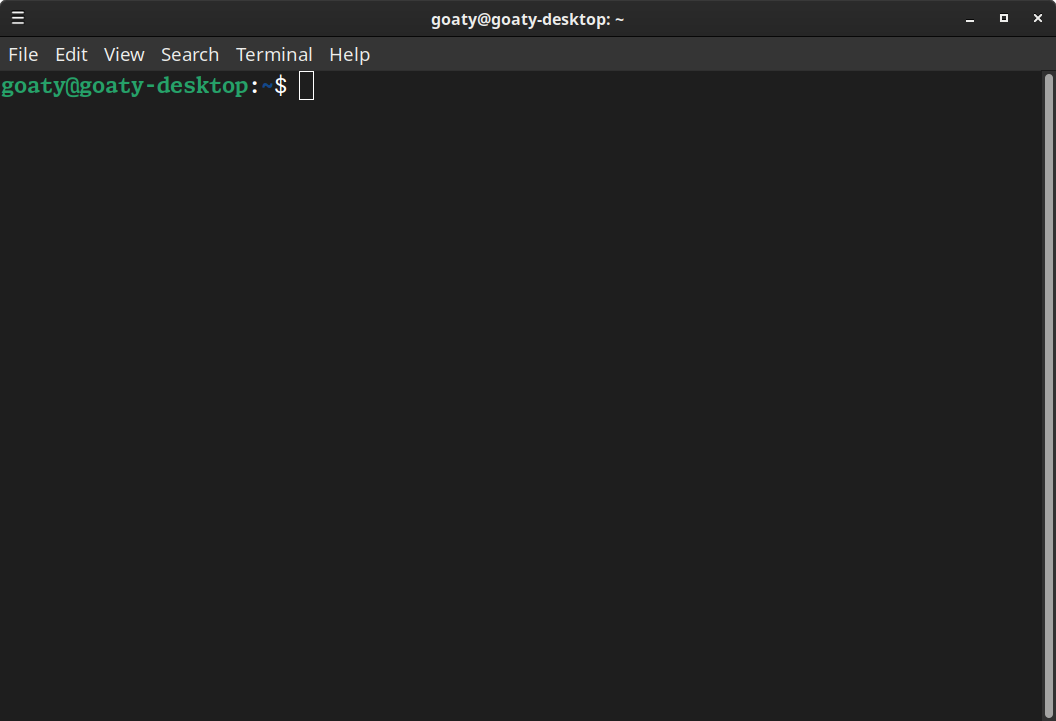
Going forward, I will say "the terminal" to refer to whatever terminal emulator you use. If it's GNOME Terminal, if it's Konsole, if it's something else entirely, that's what I mean by "the terminal." Now let's open the terminal!
Shown here, you will see goaty@goaty-desktop:~$. The goaty is my username, and goaty-desktop is my computer. Similarly, you should see your username and computer name.
After that you can see a colon (:) before a tilde (~) followed by a dollar sign ($). What's between the colon and the dollar sign is your current location within your file system. ~ represents your home directory, where folders like your Documents, Downloads, Music, etc are by default.
ls
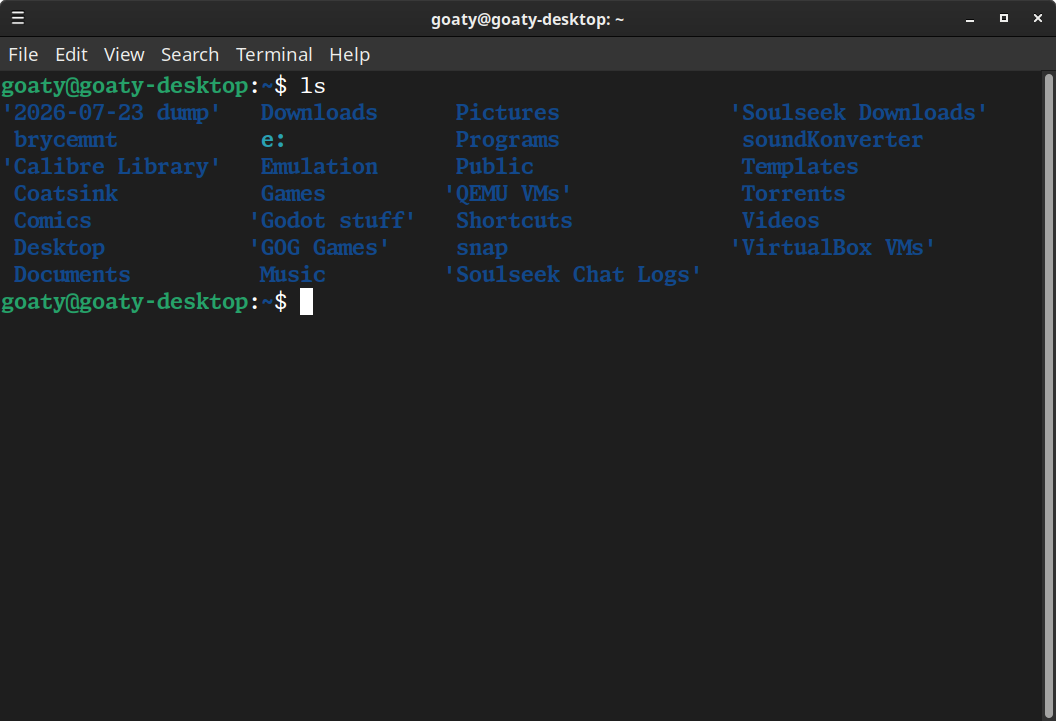
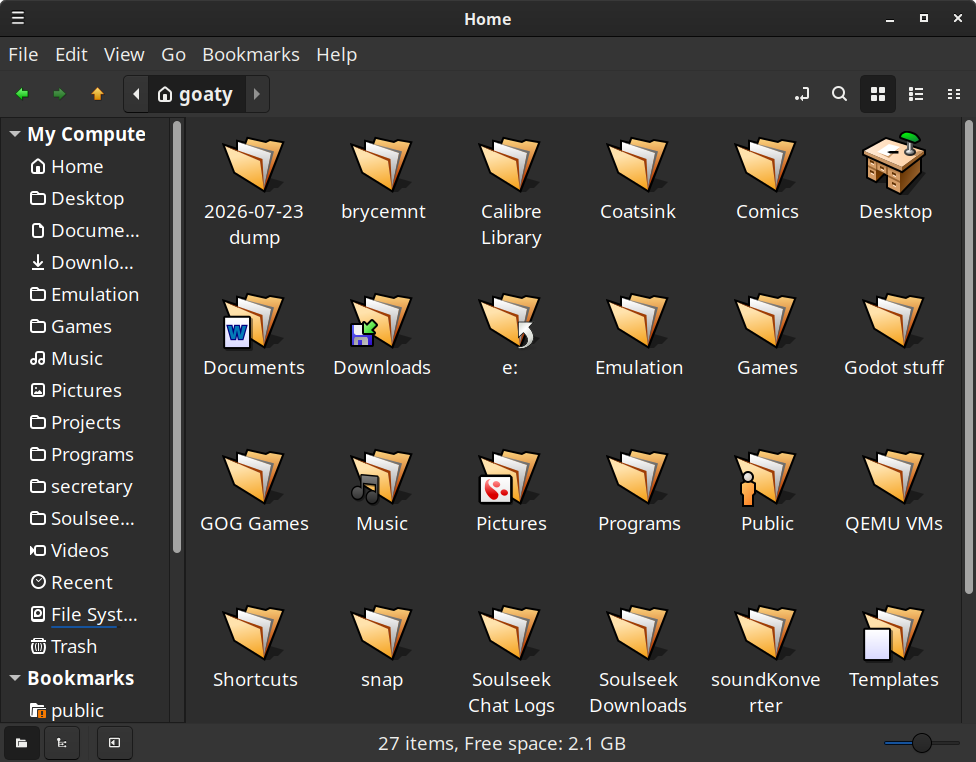
That's L as in Larry, S as in Steven, but it's case-sensitive and must be lower case. You can use the command ls to list what's in the current folder ("ls" is short for "list"). Here's my home folder:
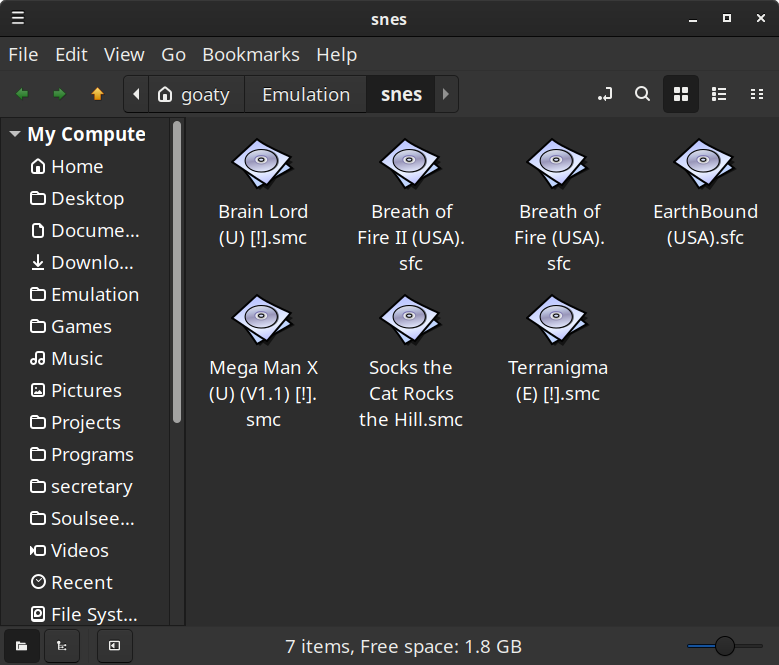
As you can see, it's the same as if I had opened it in the file manager:
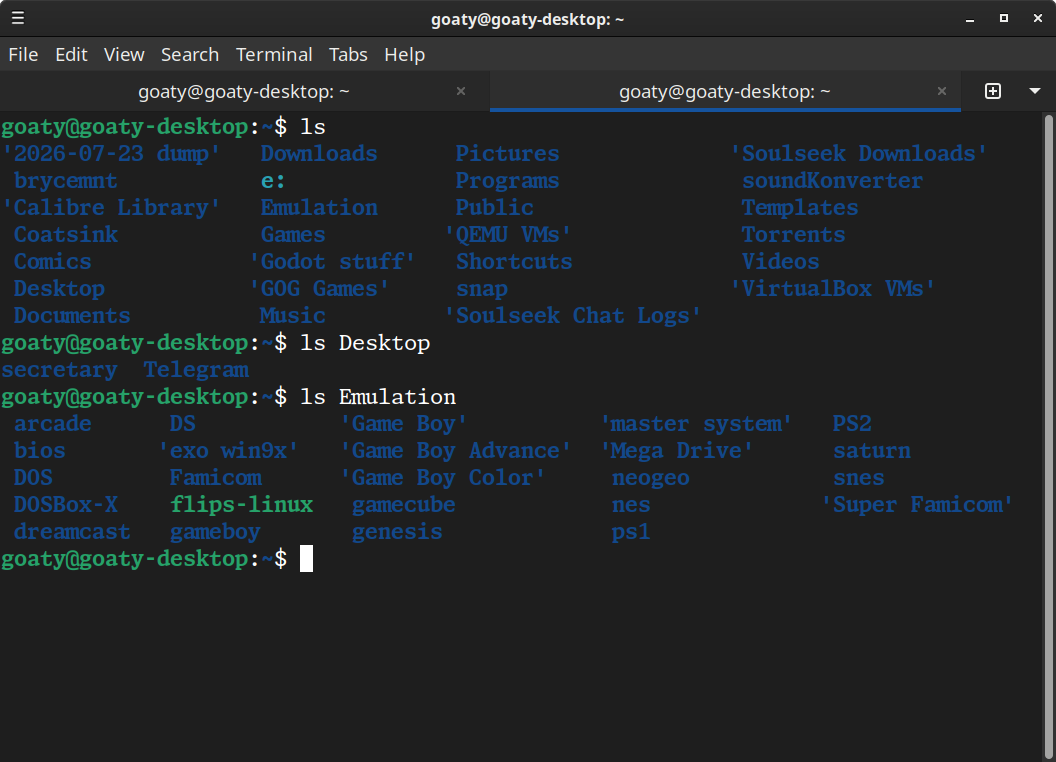
You can also use ls to view the contents of folders within your current folder:
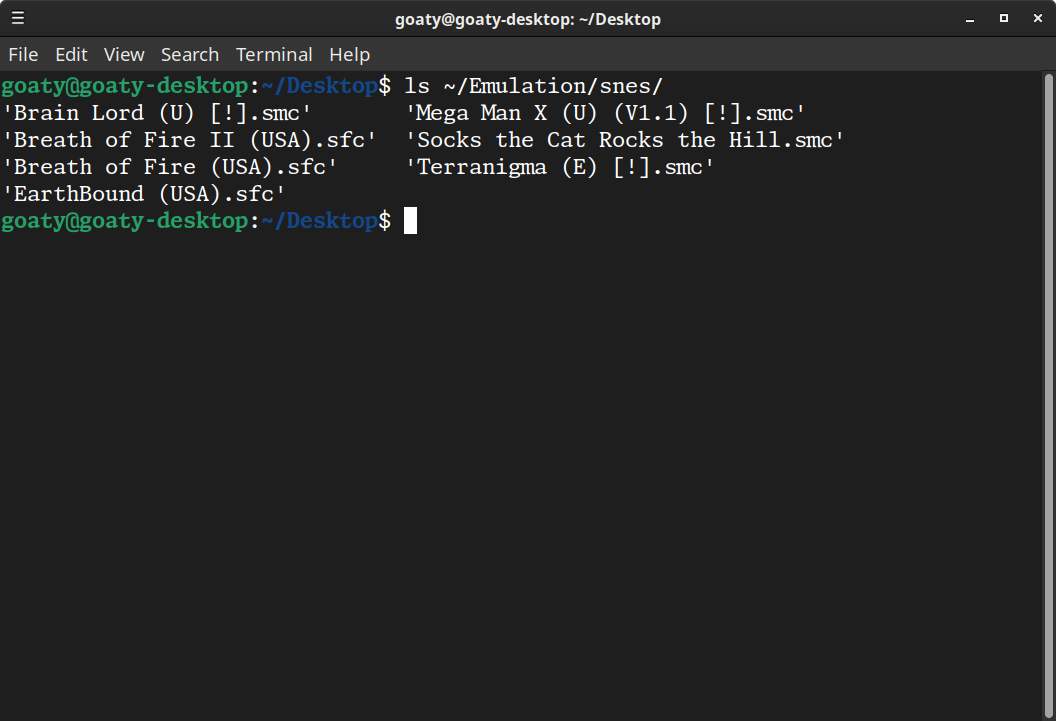
If you know the path, you can even use it to view the contents of an arbitrary folder. Here I've moved to my Desktop (you can tell because it shows :~/Desktop$ instead of just :~$; we'll talk about moving between folders next), but I can still view the contents of Emulation/snes even though it's in a different folder entirely:
By prefacing the path with ~, bash knows that I want to start from the home folder, rather than the current folder.
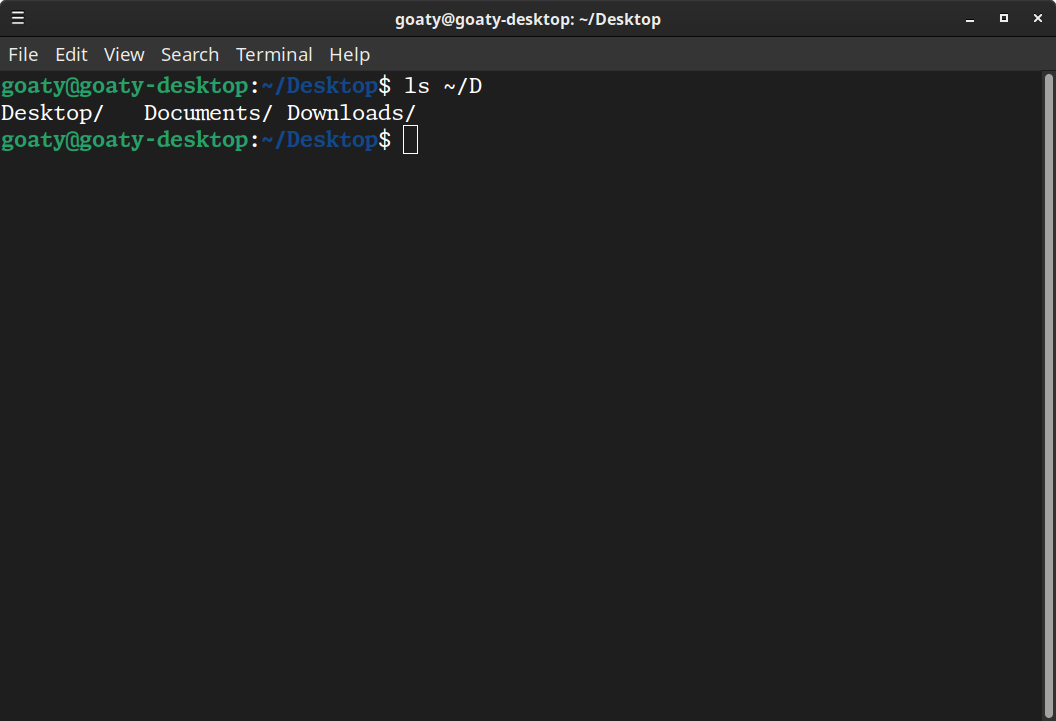
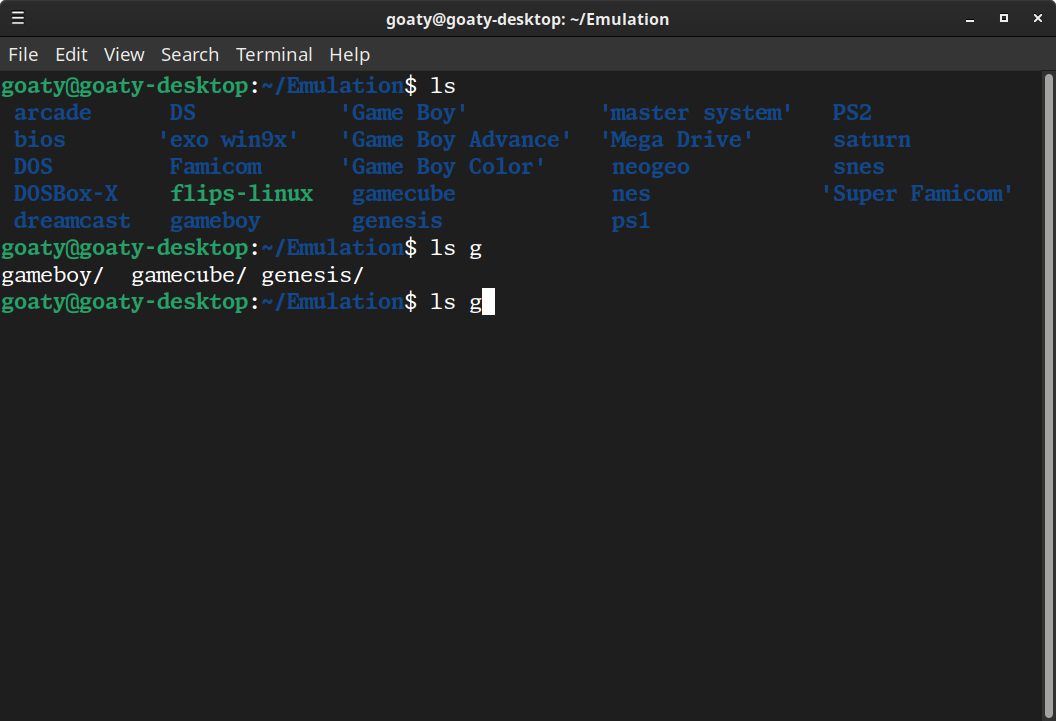
Tip! You can use the tab key to automatically complete folder and file names. I can't really show this well visually, but if I type ~/E and then hit tab, it will autocomplete to ~/Emulation because "Emulation" is the only folder in my home directory that starts with E. If there are multiple folders and/or files that start with a letter, pressing tab twice will list possibilities, like this:
You can use this in your current folder, as well:
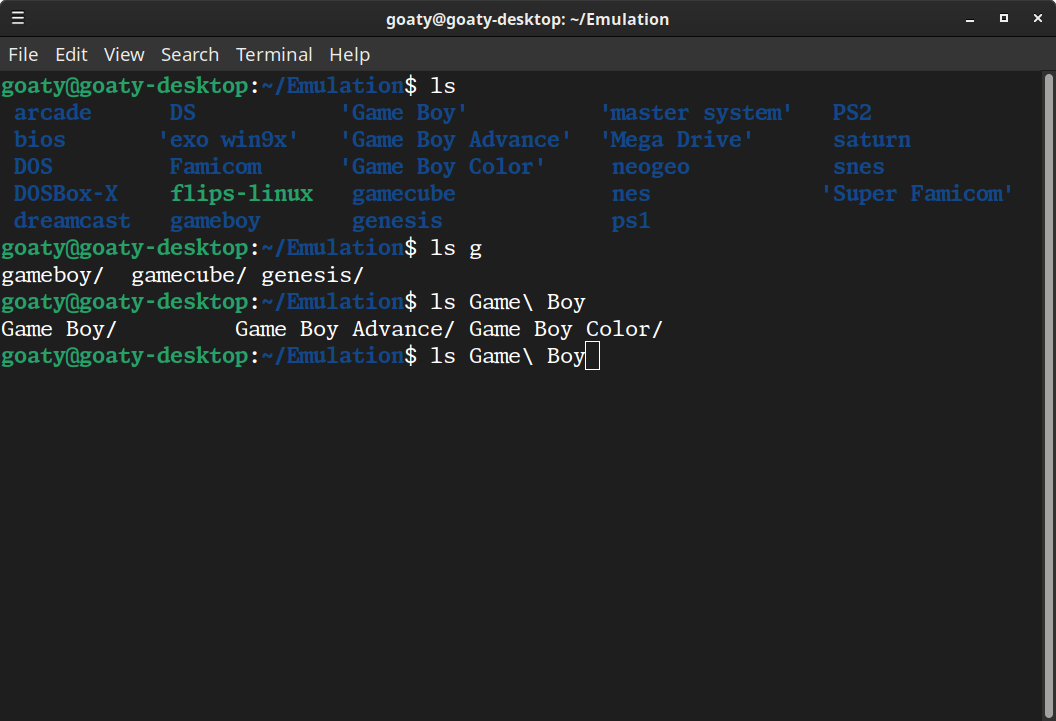
As you may have noticed, Linux is case sensitive; lower case g and upper case G will give different results:
In my case, upper case G autocompletes to Game\ Boy because the only folders in here starting with capital G also start with "Game Boy" (the \ before the space is there so bash knows that the space is part of the folder's name; it works the same way for files. If I wanted to go in the Game Boy folder, I would type ls Game\ Boy rather than ls Game Boy).
Now, let's talk about moving around.
cd
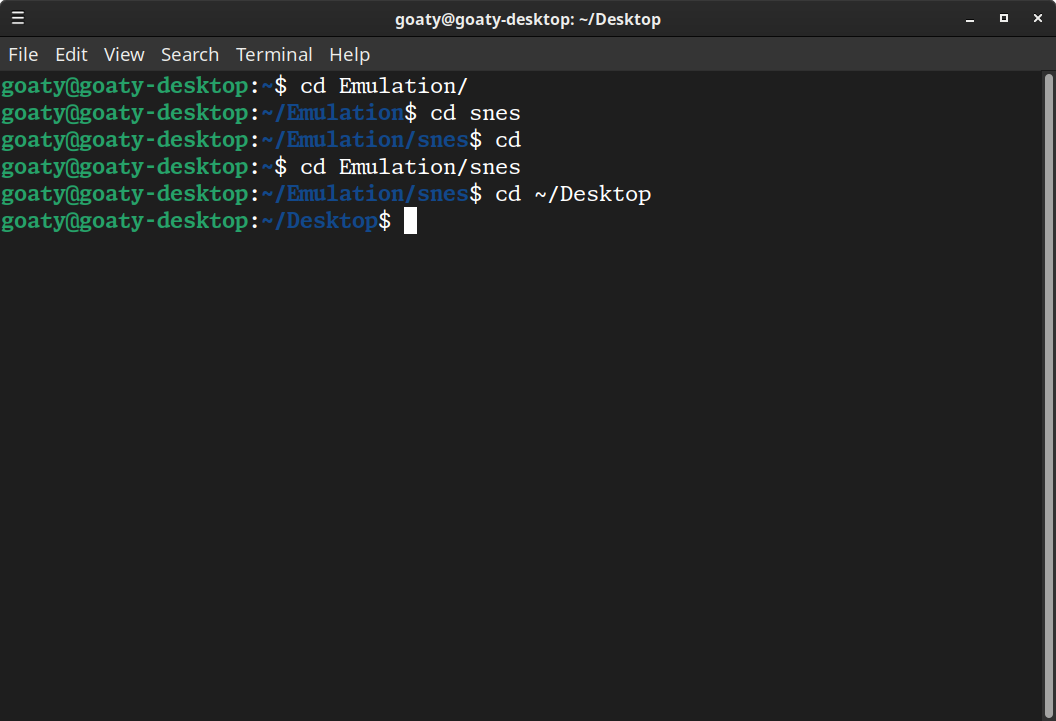
You can use cd to change folders ("cd" stands for "change directory" with "directory" in this case meaning "folder;" if I say "directory" in this document, it's the same as "folder"). We'll start from the home directory and go from there:
You can see a few different uses of cd here, which I'll explain in order.
From the home directory, I type cd Emulation to move to my Emulation folder (as shown in the path between : and $).
Then, I move to the snes folder with cd snes. I can go back to my home folder using cd on its own; this automatically brings you back to your home folder, and is the same as if you typed cd ~.
You can type a full path, assuming you know where you're going, as shown by cd Emulation/snes. This also works for switching to a different folder, as shown with cd ~/Desktop; ~ represents your home directory, and bash knows that if you start a path with ~, you want to start from your home directory.
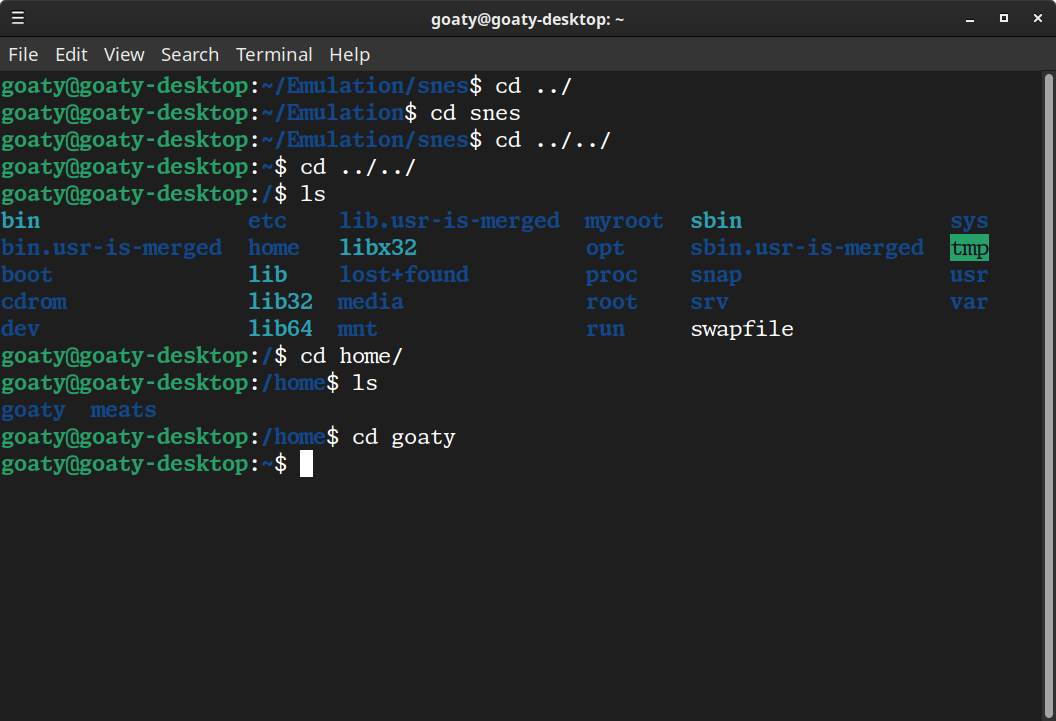
But let's say you want to go up one level:
Starting from my snes folder, I can use cd ../ to move up one folder, to my Emulation folder. ../ represents the folder containing the current one. If I were in Emulation, ../ would take me to my home directory.
You can use it more than once in a path; from my snes folder, cd ../../ takes me back to my home folder. You can also use this to go above your home folder. cd ../../ while in my home folder takes me to my computer overall, represented by :/$. I've used ls to show the contents of my computer's top folder, but you don't need to worry too much about the specifics that are in there; it's just to show that it's above the home directory.
From the top folder in my computer, I can use cd home to access all users' home folders, and then cd goaty to get back to my home folder, as shown by :~$.
I'm pretty sure that covers all the basics of moving around within the terminal. You can also perform operations like copying, moving, and deleting files, as well as creating files, but I'm not going to get into that; if you want to learn more about that, there are more thorough guides and tutorials.
Using Commands and Arguments
Now that you know the basics of getting around within bash, let's get into the command structure and how to run programs.
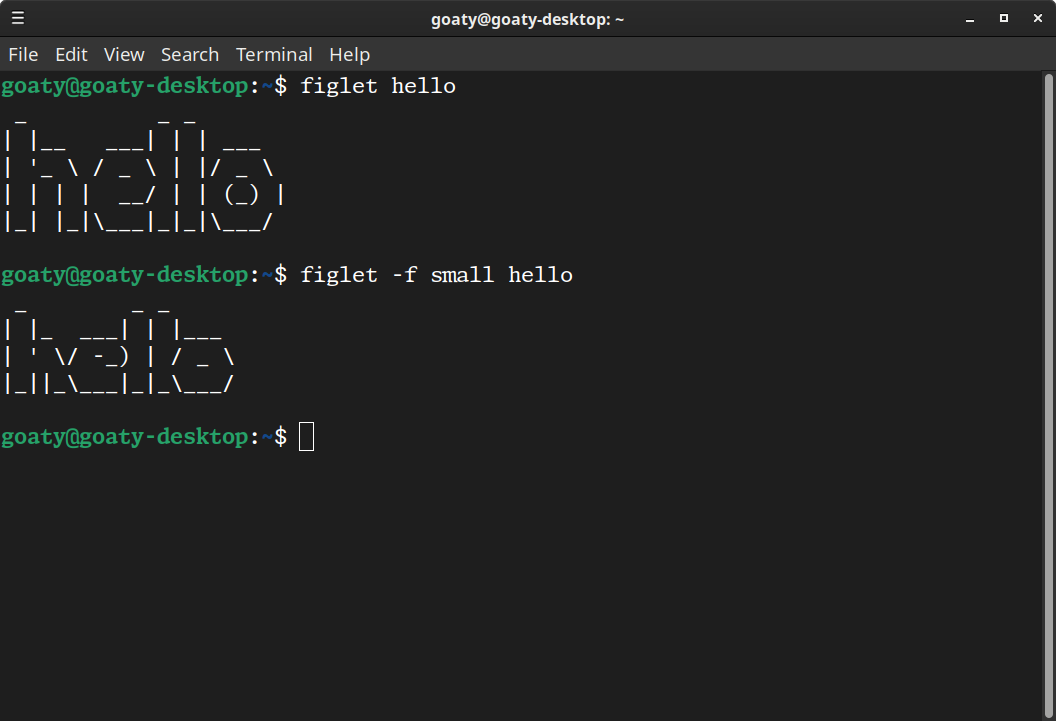
A "command" is perhaps self-explanatory; you type in a specific string and the computer does what that string says it should do. ls and cd are commands, but so is something like, as a simple example, figlet:
FIGlet is a program that generates ASCII text banners, and will serve as an easy example for our purposes.
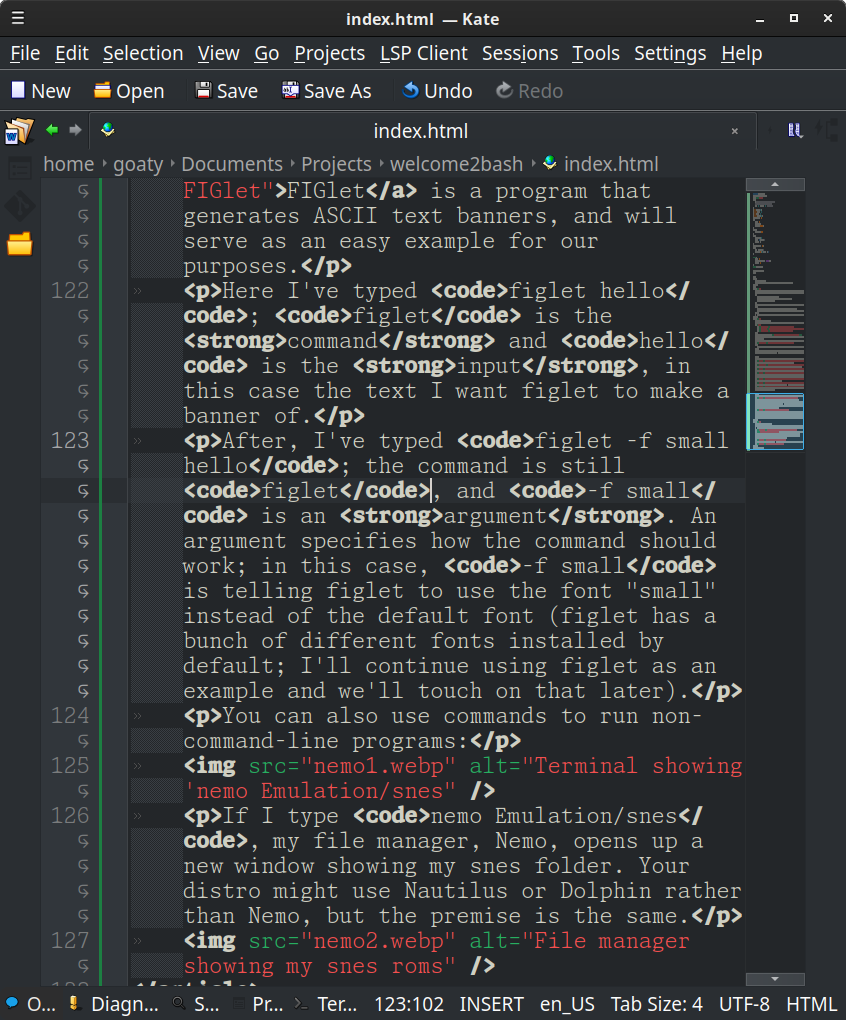
Here I've typed figlet hello; figlet is the command and hello is the input, in this case the text I want figlet to make a banner of.
After, I've typed figlet -f small hello; the command is still figlet, and -f small is an argument. An argument specifies how the command should work; in this case, -f small is telling figlet to use the font "small" instead of the default font. Arguments typically start with one or two dashes, - or --.
Running Other Programs
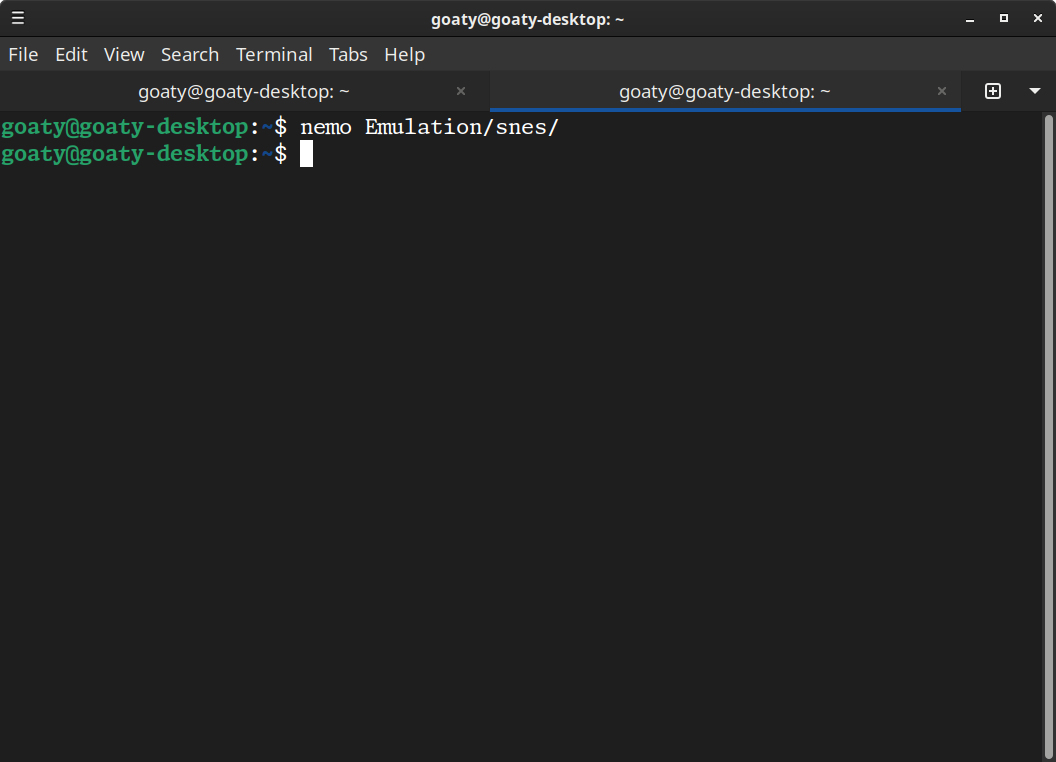
You can also use commands to run non-command-line programs:
If I type nemo Emulation/snes, my file manager, Nemo, opens up a new window showing my snes folder. Your distro might use Nautilus or Dolphin rather than Nemo, but the premise is the same.
You can use most programs this way, though it will vary depending on the program.
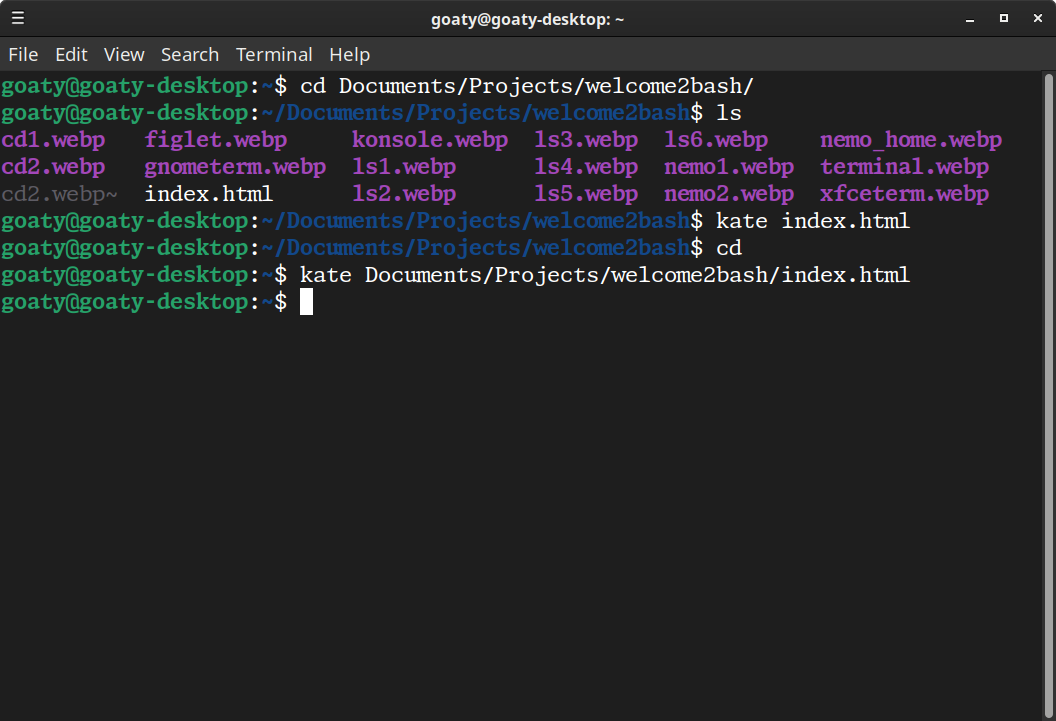
Here I've used the kate command to open this webpage (the input index.html) in Kate, my preferred text editor:
You can either navigate to the directory that has the file you want to open or, if you know the path, type it in directly. I've included both in the first of these two screenshots for reference.
sudo
The sudo command stands for "superuser do" as in "run the following command as a superuser." This is effectively the same as running a program as administrator on Windows, if that helps.
Some commands, for one reason or another, require you to run them as a superuser, meaning you'll have to enter an administrator password to execute the command (if you are the only user on your computer, you are most likely the administrator!).
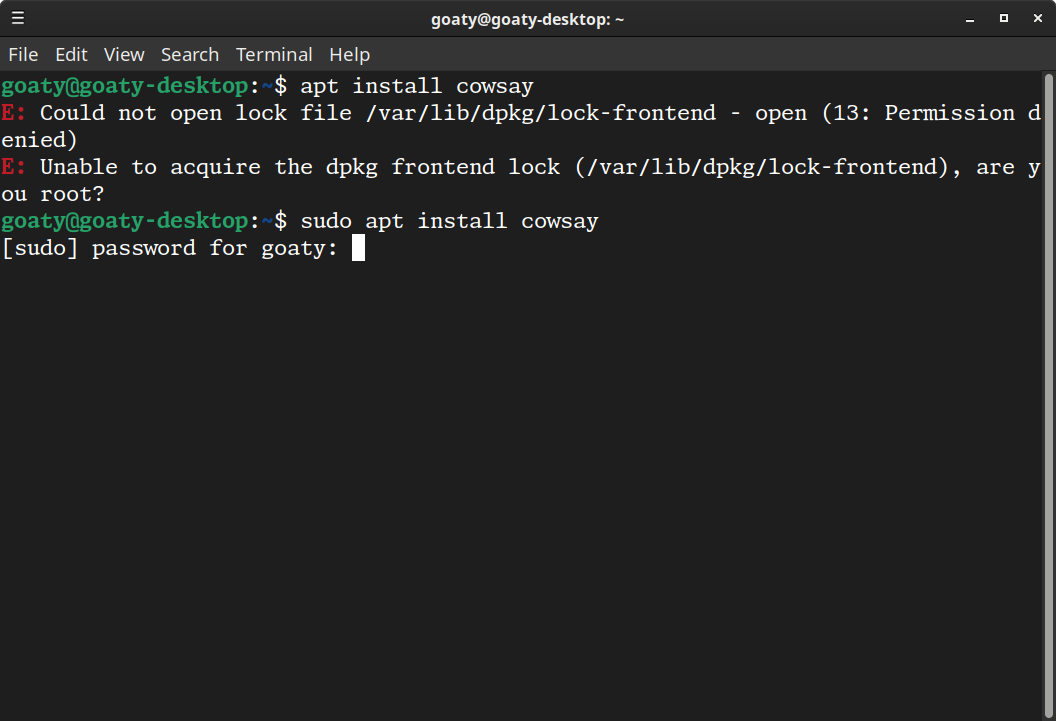
In this example I'll use apt install as the command, since installing programs requires superuser access.
This is not a guide to using apt (there are plenty out there), but consider this a sneak peek, I suppose. I will be using apt to install cowsay, a simple program that creates ascii art of a cow saying your input.
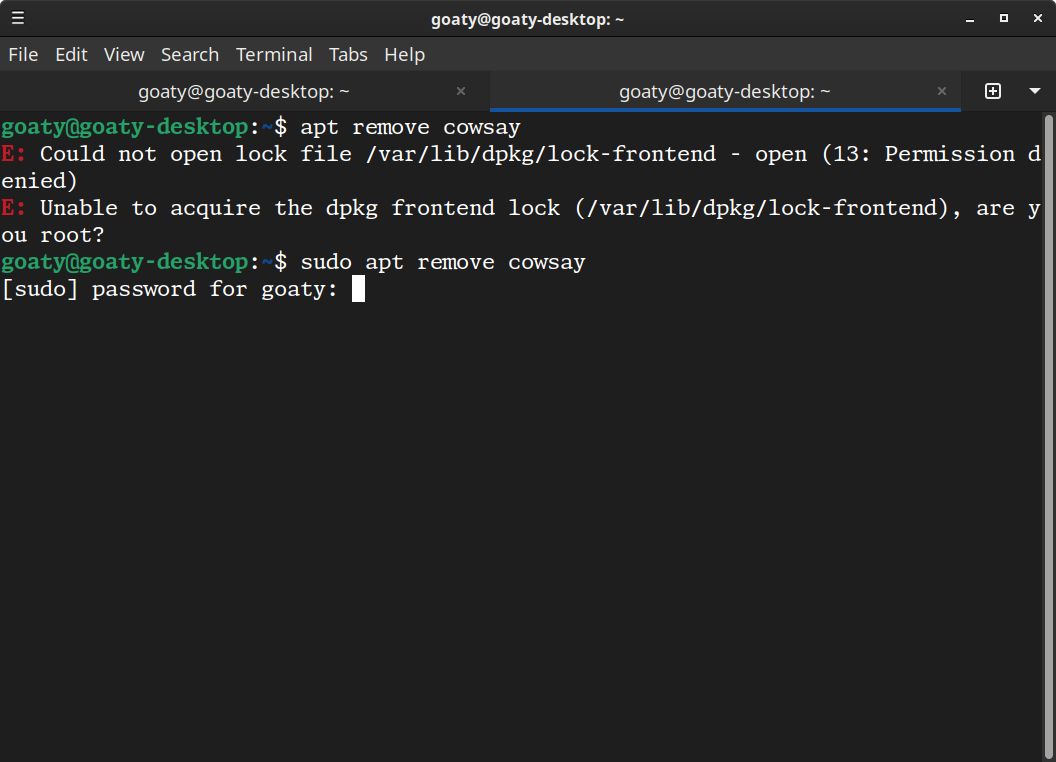
In this screenshot, I've typed apt install cowsay and bash has returned an error message asking if I'm root. "Root" in this context is the same as "superuser," though it can also sometimes refer to the root folder of your filesystem.
This means the command has to be run via sudo. With sudo apt install cowsay, I'm prompted to enter my password. No text will appear for security reasons, so just type it and hit enter.
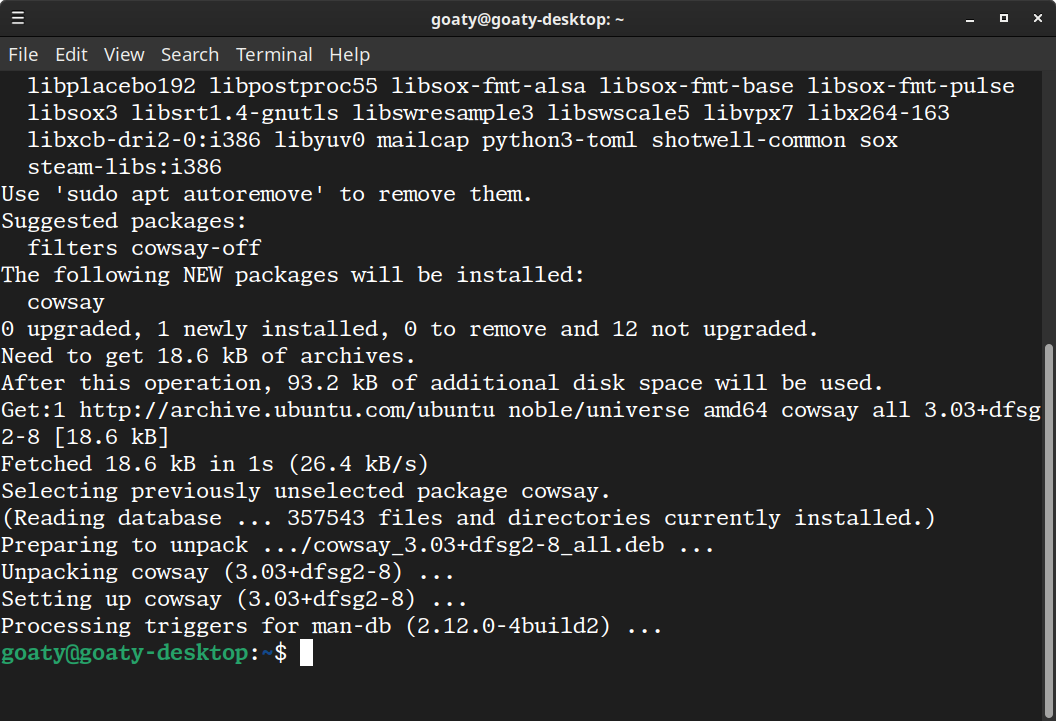
Sometimes you will be asked to confirm that you want to install a program, but sometimes it will just install without asking. In this case, that block of text up there is the process of installing.
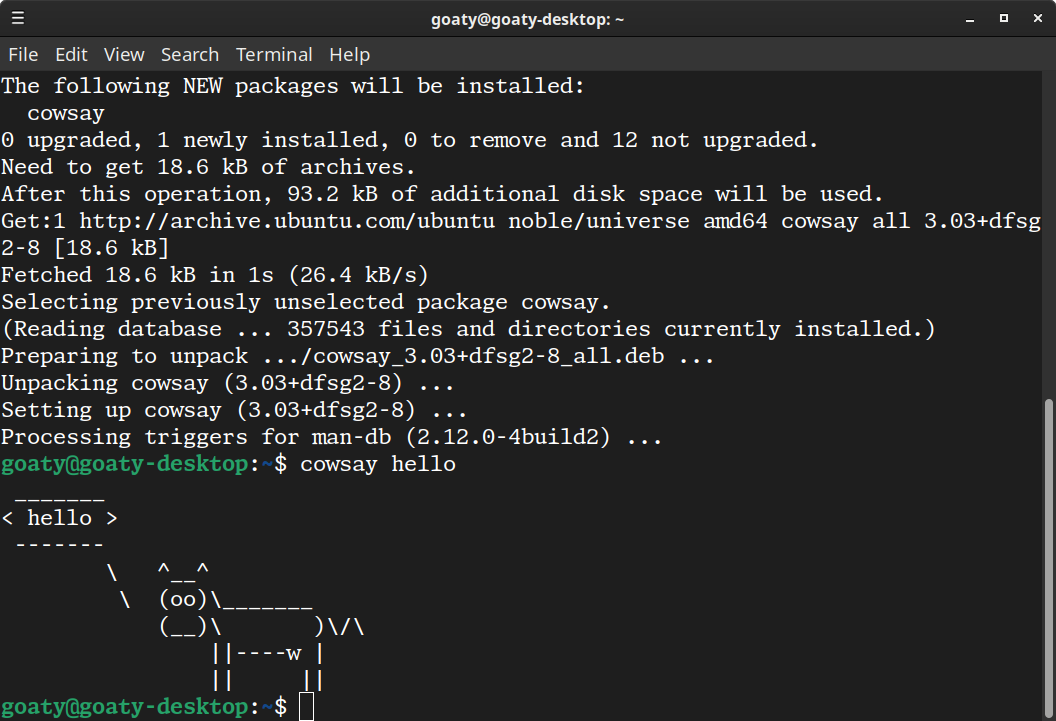
Now I can run cowsay with the cowsay command, followed by what I want the cow to say (in this case, cowsay hello).
Uninstalling via apt also requires sudo:
I think that about covers sudo.
Help & Manual
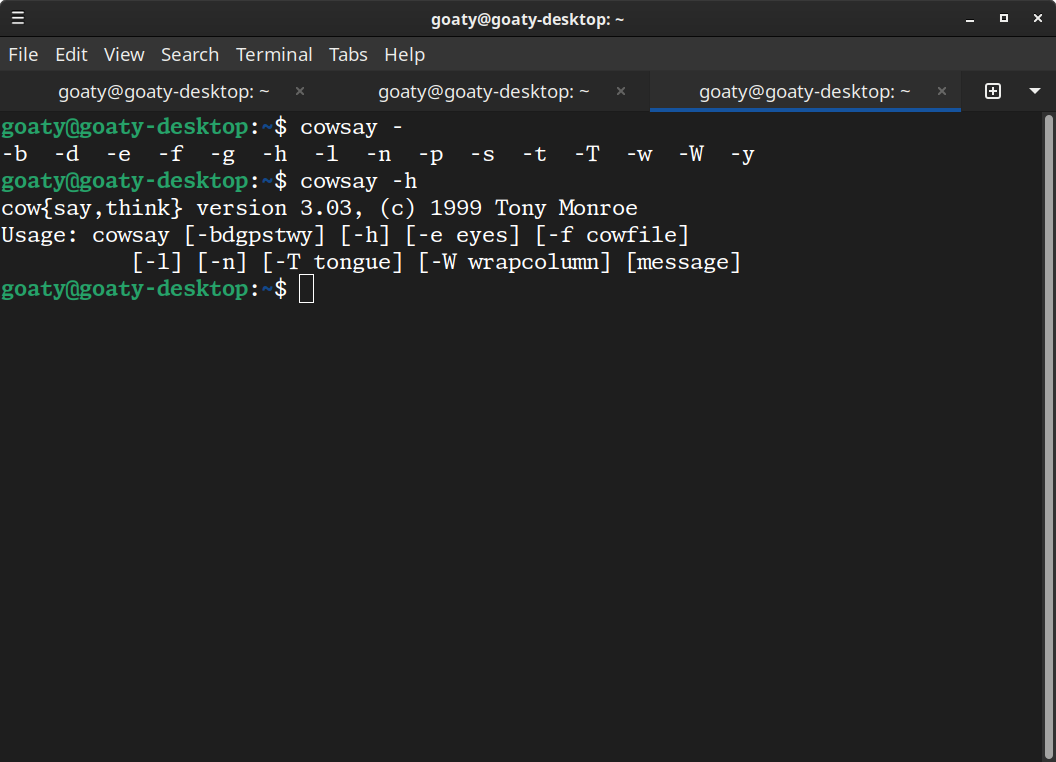
When using the terminal, you may want to look up how to use a given command. You can often get assistance one of two ways: using a help argument (this depends on the program) or using manual pages. Not all commands have manual pages ("man pages" for short), but many do, as do libraries and other computer things we're not getting into. First, let's talk about help arguments.
Here I've typed cowsay - and pressed the tab key to list possible arguments for the command cowsay. Among those is -h, for "help." In this case, it lists a brief version and copyright message followed by a list of arguments that can be used; as shown, these arguments start with a hyphen. Some of them, such as -f, require the user to input a specific string, in this case a cowfile:
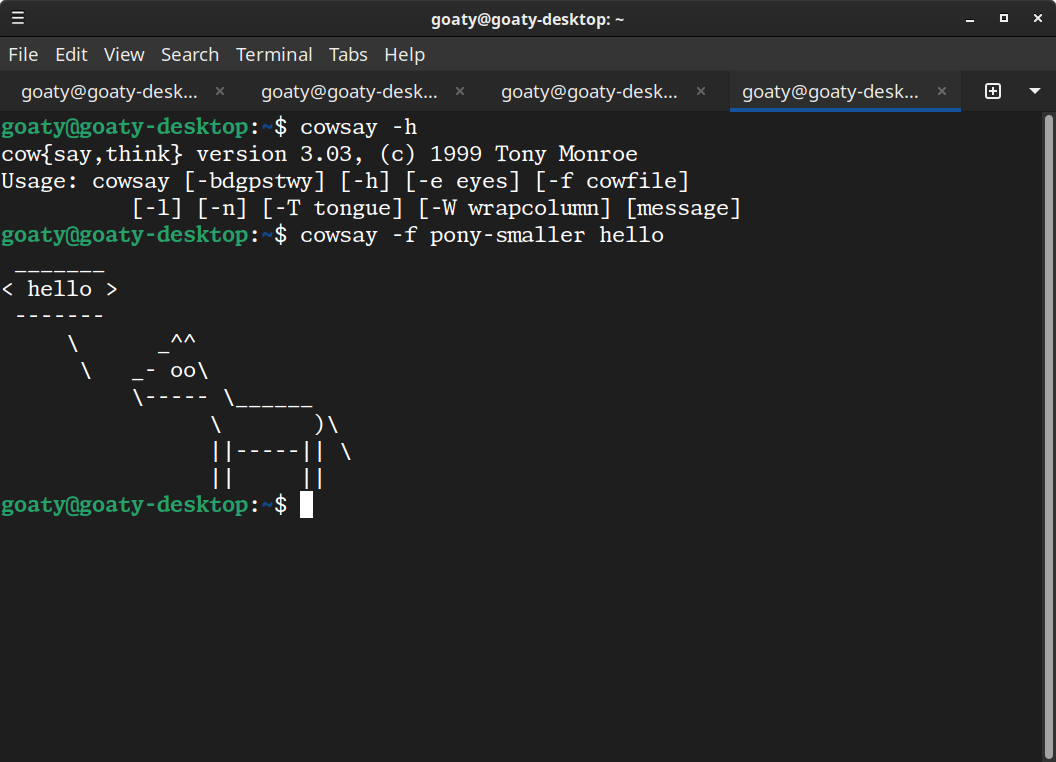
In this case, I've used cowsay -f pony-smaller hello to generate a pony instead of a cow. Cowsay offers a variety of different "cowfiles" that can be used to change what is generated. The command is cowsay, the argument is -f pony-smaller, and the input is hello.
Man pages
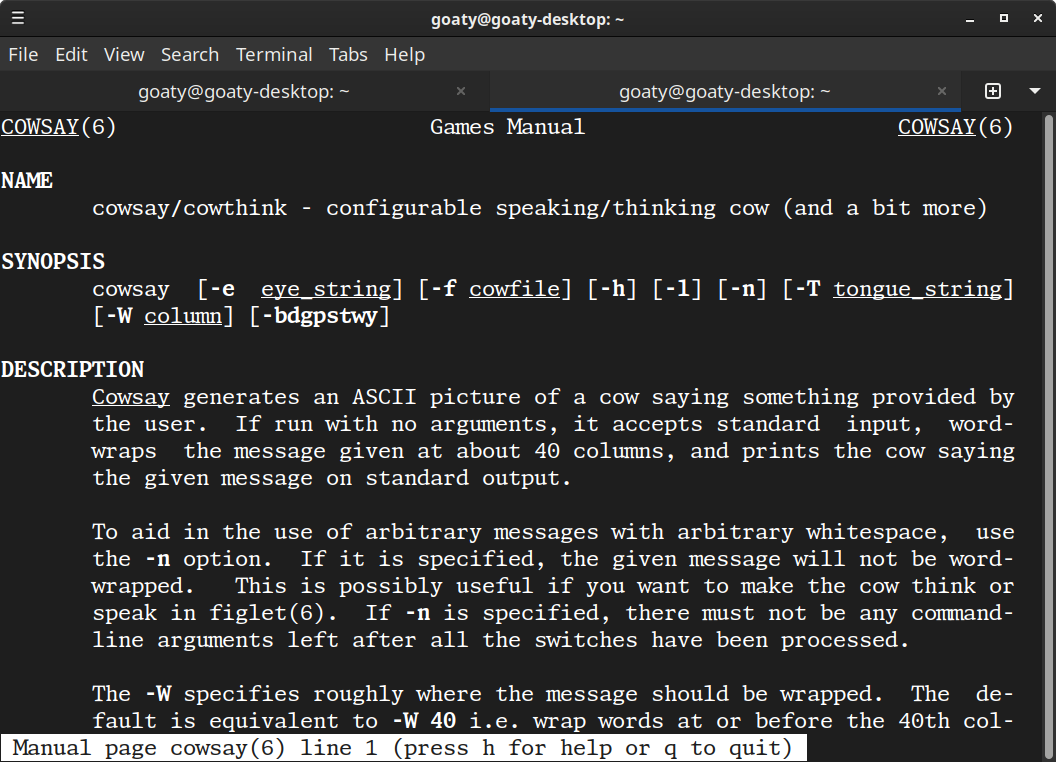
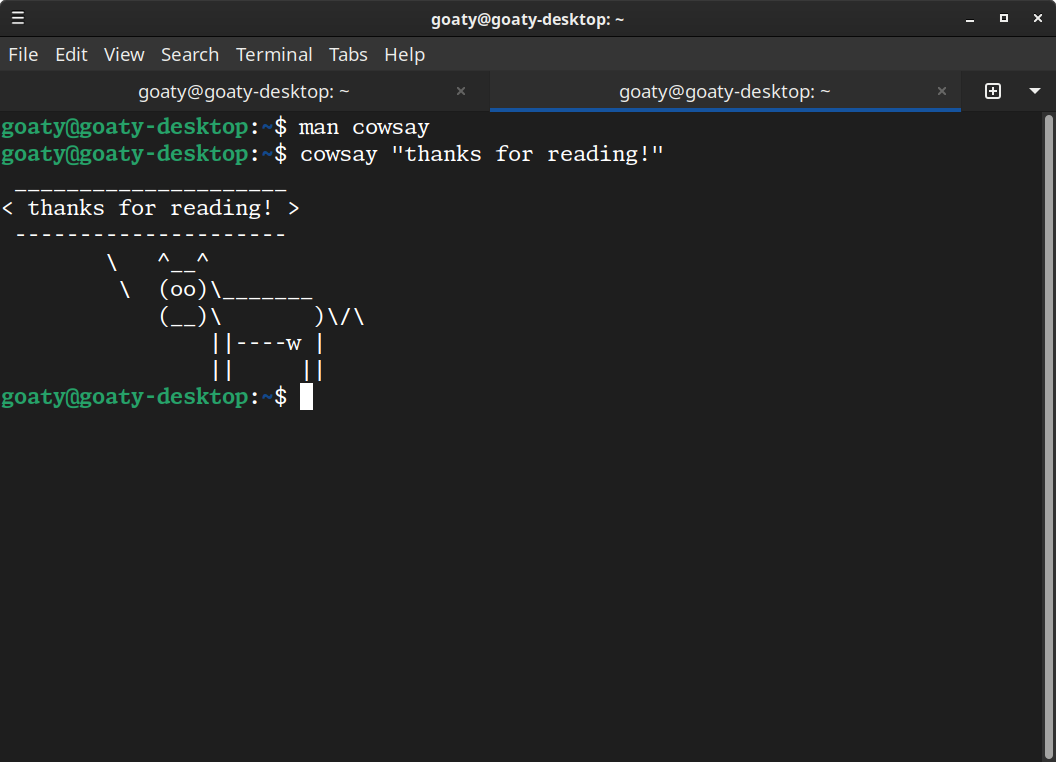
By typing man cowsay, we can access the man page for cowsay. It will show within the terminal, and generall has more detailed information than a help command, such as cowsay -h.
This shows the name of the command, followed by a brief description; a synopsis of the arguments for cowsay, and a description of cowsay. You can use the arrow keys or scroll wheel to navigate the man page; further down there's more information about the program, as well as the author's information. You can press the h key for an explanation of how to navigate the man page, or q to close it and be returned to the terminal.
The End
I think that's everything I can really think of! Hopefully that puts you in a position to figure things out when you need to.